Outgoing mail SMTP server

An email client needs to know the IP address of its initial SMTP server and this has to be given as part of its configuration (usually given as a DNS name). This server will deliver outgoing messages on behalf of the user.

Outgoing mail server access restrictions

Server administrators need to impose some control on which clients can use the server. This enables them to deal with abuse, for example spam. Two solutions have been in common use:

  • In the past, many systems imposed usage restrictions by the location of the client, only permitting usage by clients whose IP address is one that the server administrators control. Usage from any other client IP address is disallowed.
  • Modern SMTP servers typically offer an alternative system that requires authentication of clients by credentials before allowing access.

Restricting access by location

Under this system, an ISP’s SMTP server will not allow access by users who are outside the ISP’s network. More precisely, the server may only allow access to users with an IP address provided by the ISP, which is equivalent to requiring that they are connected to the Internet using that same ISP.

A mobile user may often be on a network other than that of their normal ISP, and will then find that sending email fails because the configured SMTP server choice is no longer accessible.

This system has several variations. For example, an organisation’s SMTP server may only provide service to users on the same network, enforcing this by firewalling to block access by users on the wider Internet. Or the server may perform range checks on the client’s IP address.

These methods were typically used by corporations and institutions such as universities which provided an SMTP server for outbound mail only for use internally within the organization. However, most of these bodies now use client authentication methods, as described below.

Where a user is mobile, and may use different ISPs to connect to the internet, this kind of usage restriction is onerous, and altering the configured outbound email SMTP server address is impractical. It is highly desirable to be able to use email client configuration information that does not need to change.

Client authentication

Modern SMTP servers typically require authentication of clients by credentials before allowing access, rather than restricting access by location as described earlier. This more flexible system is friendly to mobile users and allows them to have a fixed choice of configured outbound SMTP server. SMTP Authentication, often abbreviated SMTP AUTH, is an extension of the SMTP in order to log in using an authentication mechanism.

Open relay

A server that is accessible on the wider Internet and does not enforce these kinds of access restrictions is known as an open relay. This is now generally considered a bad practice worthy of blacklisting.

Ports

Communication between mail servers generally uses the standard TCP port 25 designated for SMTP.

Mail clients however generally don’t use this, instead using specific “submission” ports. Mail services generally accept email submission from clients on one of:

  • 587 (Submission), as formalized in RFC 6409 (previously RFC 2476)
  • 465 This port was deprecated after RFC 2487, until the issue of RFC 8314.

Port 2525 and others may be used by some individual providers, but have never been officially supported.

Most Internet service providers now block all outgoing port 25 traffic from their customers as an anti-spam measure. For the same reason, businesses will typically configure their firewall to only allow outgoing port 25 traffic from their designated mail servers.

SMTP transport example

A typical example of sending a message via SMTP to two mailboxes (alice and theboss) located in the same mail domain (example.com or localhost.com) is reproduced in the following session exchange. (In this example, the conversation parts are prefixed with S: and C:, for server and client, respectively; these labels are not part of the exchange.)

After the message sender (SMTP client) establishes a reliable communications channel to the message receiver (SMTP server), the session is opened with a greeting by the server, usually containing its fully qualified domain name (FQDN), in this case smtp.example.com. The client initiates its dialog by responding with a HELO command identifying itself in the command’s parameter with its FQDN (or an address literal if none is available).

Protocal overview

SMTP is a connection oriented, text-based protocol in which a mail sender communicates with a mail receiver by issuing command strings and supplying necessary data over a reliable ordered data stream channel, typically a Transmission Control Portocal (TCP) connection. An SMTP transaction consists of three command/reply sequences:

  1. MAIL command, to establish the return address, also called return-path, reverse-path, or envelope sender.
  2. RCPT command, to establish a recipient of the message. This command can be issued multiple times, one for each recipient. These addresses are also part of the envelope.
  3. DATA to signal the beginning of the message text; the content of the message, as opposed to its envelope. It consists of a message header and a message body separated by an empty line.

Besides the intermediate reply for DATA, each server’s reply can be either positive (2xx reply codes) or negative. Negative replies can be permanent (5xx codes) or transient (4xx codes).

reject is a permanent failure and the client should send a bounce message to the server it received it from. A drop is a positive response followed by message discard rather than delivery.

The initiating host, the SMTP client, can be either an end-user’s email client, functionally identified as a mail user agent (MUA), or a relay server’s mail transfer agent (MTA), that is an SMTP server acting as an SMTP client, in the relevant session, in order to relay mail.

Fully capable SMTP servers maintain queues of messages for retrying message transmissions that resulted in transient failures.

A MUA knows the outgoing mail SMTP server from its configuration. A relay server typically determines which server to connect to by looking up the MX (Mail exchange) DNS resource record for each recipient’s domain name.

Relay servers can also be configured to use a smart host. A relay server initiates a TCP connection to the server on the “well-known port” for SMTP: port 25, or for connecting to an MSA, port 587. The main difference between an MTA and an MSA is that connecting to an MSA requires SMTP Authentication.

SMTP vs mail retrieval

SMTP is a delivery protocol only. In normal use, mail is “pushed” to a destination mail server (or next-hop mail server) as it arrives. Mail is routed based on the destination server, not the individual user(s) to which it is addressed. Other protocols, such as the Post Office Protocol (POP) and the Internet Message Access Protocol (IMAP) are specifically designed for use by individual users retrieving messages and managing mail boxes.

To permit an intermittently-connected mail server to pull messages from a remote server on demand, SMTP has a feature to initiate mail queue processing on a remote server (see Remote Message Queue Starting below).

 POP and IMAP are unsuitable protocols for relaying mail by intermittently-connected machines; they are designed to operate after final delivery, when information critical to the correct operation of mail relay (the “mail envelope”) has been removed.

Remote Message Queue Starting

Remote Message Queue Starting is a feature of SMTP that permits a remote host to start processing of the mail queue on a server so it may receive messages destined to it by sending the TURN command.

This feature however was deemed insecure and was extended in RFC 1985 with the ETRN command which operates more securely using an authentication method based on Domain Name System information.

On-Demand Mail Relay

On-Demand Mail Relay (ODMR) is an SMTP extension standardized in RFC 2645 that allows an intermittently-connected SMTP server to receive email queued for it when it is connected.

Internationalization

Users whose native script is not Latin based, or who use diacritic not in the ASCII character set have had difficulty with the Latin email address requirement. RFC 6531 was created to solve that problem, providing internationalization features for SMTP, the SMTPUTF8 extension and support for multi-byte and non-ASCII characters in email addresses, such as those with diacritics and other language characters such as Greek and Chinese.

Current support is limited, but there is strong interest in broad adoption of RFC 6531 and the related RFCs in countries like China that have a large user base where Latin (ASCII) is a foreign script.

Klenty

Klenty is an Outbound Sales Automation tool for inside Sales team to prospect, outreach and follow up at scale.”

Klenty is a software product that helps B2B Sales SuperHeroes to Prospect, Outreach & Follow-up at scale. Using Klenty, your sales team can increase sales conversions with reduced manual efforts and generate more leads.

With Klenty, you can effortlessly:

  1. Search and build a list of prospects
  2. Find their official email ids
  3. Send personalized one-to-one cold emails
  4. Set automated follow-ups at scale
  5. Track email opens, clicks and replies and more

Klenty FEATURES

Email Finder :

1. Find Official Email Id of Prospects with First Name, Last Name & Domain Name.

Email Tracking :

  1. Track your mails the moment they are sent from your gmail.

  2. Get notifications when some opens or clicks any link in your email.

Cold Email Templates :

  1. Increase open rates by creating personalized email templates. You can also choose templates from the in-built template library.

  2. Save & use multiple templates. Find the ones which performs better and optimize your email campaigns.

Email Scheduling:

Schedule Emails at specific time based on time-zones for better open rates

Mail merge:

Select multiple prospects & send personalized emails to all with just a single click.

Cadences:

Select multiple prospects & set multi-stage automated drip follow-up emails.

Reminders and follow-ups:

Set reminders for yourself to follow up on emails sent earlier.

Detailed Analytics :

  1. Summary of Email Engagement with Open Rates, Click Rates, Reply rates

  2. Mail-wise analytics on Opens, Clicks & Replies that helps you to prioritize follow-ups.

  3. Find the best performing templates and subject lines with A/B testing

  4. Team analytics and collaboration 

               Want to know which prospects are showing interest in your sales emails? Try Klenty now. It helps you to find who, when & how often your emails are opened and so that you can focus your sales efforts on genuine prospects!


“Klenty has taken an innovative step forward in the cold email market”

What do you like best?

By far, my favorite feature is the “Journey” feature which allows deep customization and flexibility with conditional emailing options. I hadn’t been able to find a provider that was able to help me with our complex conditional cold email process…

Klenty has been the only one with flexible features such as webhooks, customizable conditional emailing rules, and awesome reporting tools.

What do you dislike?

The interface runs in ajax or something, so once in a while it can be slow to refresh.

Recommendations to others considering the product

Definitely try out the flexibility that the Journeys have to offer, and use the conditional functionality to tailor your communications to the right people at the right time depending on how they interact with your emails.

What business problems are you solving with the product? What benefits have you realized?

We have a very elaborate cold emailing system that no provider had been able to help us with automating. Now with our Klenty Journeys, we can truly put it all on auto pilot and don’t have to manually move contacts from one list to another, or manually notify team members of a prospect’s disposition in the Journey. Plus, the team there has been very receptive to any suggestions or needs we’ve had. Really a great group of people to work with!

“Best follow-up and lead generator tool to get your new clients”

What do you like best?

Great features to start cold talking. KLENTY has been very well developed as a IT tool and provides all the features you need to start cold talking and even with current clients in order to automate your conversations. Totally recommended!

What do you dislike?

Since Linked removed the ability to get contacts from the KLENTY Chrome Extension, the missing prospector from Linkedin has been very needed. However this is something that had happened to all apps working with scrapping at Linkedin.

Recommendations to others considering the product

KLENTY has been very well developed as a IT tool and provides all the features you need to start cold talking and even with current clients in order to automate your conversations.

What business problems are you solving with the product? What benefits have you realized?

Tedious follow-up with prospects, follow-up with existing clients. THe main benefit is time saving as well as to have a full automated tool to generate more conversations with companies to do business.

“Klenty is the software I had been searching for”

What do you like best?

Incredible features to begin cold talking. KLENTY has been extremely very much created as an IT device and gives every one of the best parts you have to begin frosty talking and even with current customers keeping in mind the end goal to automate your discussions.

What do you dislike?

Since Linked evacuated the capacity to get contacts from the KLENTY Chrome Extension, the missing miner from LinkedIn has been exceptionally required. However this is something that had happened to all applications working with rejecting at LinkedIn.

Recommendations to others considering the product

KLENTY has been extremely all around created as an IT device and gives every one of the highlights you have to begin cool talking and even with current customers so as to computerize your discussions.

What business problems are you solving with the product? What benefits have you realized?

Recurring hook ups with potential clients, catch up with existing customers. The principle advantage is efficient and also to have a full automated device to create more discussions with organizations to work together.

“Klenty Review”

What do you like best?

I have been using it a lot lately at my job. I mainly use it to send email to prospects in bulk and on the go. It makes my work easy because I am able to send bulk emails to people we are looking to hire. Interview scheduling is very easy too and it gets added to my calendar on one click saving me a lot of time on adding numerous interviews during the week.

What do you dislike?

I wish their mobile version was well integrated and had all the features. It is very difficult to use Klenty on my phone right now which makes my work a bit slow and slugggish. If they can fix that, it would be very helpful because then I can make interview appointments on my phone and would be able to reply to prospects faster.

Recommendations to others considering the product

Definitely give it a shot. Worth a try, the interface is very good and you can work your way through it quickly and in a couple of minutes.

What business problems are you solving with the product? What benefits have you realized?

I use it at Case Western to help my University recruit new staff members year round. This is much better than Hirevue and also makes my job very easy giving me the freedom to interview more people and talk to them for prospective hiring.

Klenty User Reviews, Pricing, & Popular Alternatives

Klenty provides sales professionals and teams with an email automation tool to generate qualified leads and connect with potential clients. Its features include creating email campaigns and managing prospects, as well as tracking emails, links, and website visits. We compiled Klenty user reviews from around the web and determined that it has generally positive ratings. We also shared its available pricing options

Summary of Klenty User Reviews

What Klenty Does Well

Users who gave Klenty a positive review said that they like its customer relationship management (CRM) integrations, bulk email sending feature, and data import functionality, email campaigns, as well as its customizable templates and workflows.

What Klenty Does Not Do Well

Users who gave Klenty a negative review said that its reporting tool should be enhanced. Several others mentioned that the interface is not intuitive and certain features can be hard to understand, especially for first-time users.

Most Helpful Positive User Review

One user who gave Klenty a positive review on G2 Crowd said that the software helps him sync his contacts and import his client’s data to his CRM. He added that he likes its email campaign feature that allows him to connect with cold prospects.

Most Helpful Negative User Review

One user who left a review of Klenty on G2 Crowd said that navigating through the software’s extensive platform can be daunting for first-timers. He explained that there is a learning curve when using the tool since some of its features are difficult to understand.

Klenty Pricing

Klenty offers three paid subscription plans: Tall ($30/user/month), Grande ($60/user/month), and Venti ($100/user/month). They also offer lower rates for users who sign up for an annual subscription. The main differences between the plans are the additional email accounts per user and access to features such as advanced CRM integration and website tracking.

Klenty also provides access to an email finder tool that sales professionals can use to locate a prospect’s email address. However, this is available as an add-on to the three plans. Prices range from $25 to $100 per month with email finder credits of 500 to 2,500, respectively.

Klenty Features

Check out the list below of some of Klenty features:

  • A/B Testing
  • Automated Follow-Ups and Smart Reminders
  • Click-to-Call, Call Recording, and Call Details Tracking
  • Dashboard and Analytics
  • Data Import/Export
  • Detailed Workflows
  • Email, Link, and Website Tracking
  • Email Campaigns and Email Templates
  • Email Finder
  • Prospects and Leads Management

Helpful Email Marketing Software Resources

Read about useful statistics that will help your strategy when it comes to email marketing. This covers trends, purchasing decisions, population statistics, among others.

In this guide, we identified the key features of several popular email marketing software. Read on for our comparison and review, including our top recommendations

Want to improve your email marketing strategies? Read our guide that enumerates email marketing practices that have been proven by the experts.

B2B Email Template

Email Templates

If you have a targeted lead list and your response rate is less than 10% with personalized emails, your emails could use some work. Earlier this year a B2B company came to me for help with their emails. They offered an incredible service for the SaaS space, but weren’t very successful with their sales emails. Their response rates were below 2%.

In about a month of working together, I created a single sales email template that got them more than 16 new customers. But before I reveal the template, let’s dig into what was wrong with their previous approach.

Why their email were failing:

  1. Too long: No one wants to read a mini eBook in an email.
  2. Too many ideas: Although the company had an amazing product, they were highlighting too many value props in their emails, which confused readers.
  3. Too “me me” Their emails talked way too much about why they were awesome, and listed their company’s features instead of putting it in terms of value for the customer.
  4. Too hipster: They wanted to seem young and modern, but overly fancy marketing automation templates made their emails seem impersonal and spammy, even with customization. No one thinks they’re getting a personal email if it’s too pretty.

We’ve gone through the bad, and now it’s time for the good. Here’s the new and improved template they deployed

I have an idea that I can explain in 10 minutes that can get [company] its next 100 best customers.

The results of this email spoke for themselves:

1. Exciting subject line

The subject line is your gatekeeper, so 50% of email work should be spent crafting and testing different subject lines. You want to create an exciting but credible (not spammy or sales-y) subject that intrigues recipients.

Make your subject line compelling and informative to pique the recipient’s interest in the body of the email – and research the prospect so the subject line is personalized for them.

2. Enticing offer

Give your prospects a reason to respond, and a simple call-to-action. Who wouldn’t want to “almost triple their monthly run rate?” Mentioning your past success with another client they’ve heard of makes this offer seem more realistic and attainable. Include relevant numbers and statistics to make your offer even more exciting.

3. Personal feel

This sales email has the same basic format and tone of an email you’d send to your mom or best friend. When you’re too formal, you sound stiff and like a salesperson rather than a person-person.

In the example above, the salesperson’s “idea” makes the email less aggressive and aligns with where the recipient is at the beginning of their buyer’s journey. Before you hit the send button, do a final read-through of the email to make sure it has a natural and conversational tone.

4. Social proof

One of your biggest barriers to selling is risk. No one wants to be the first customer and work with a company without credibility or experience, mentioning one of your customers and the results you delivered to them makes you less of a risk.

You can attach client case studies to provide your prospect with a detailed preview of your work. With a compelling example, the prospect will be more inclined to work with you.

Klenty FAQ

Is there a free trial?

Yes. Interested users can sign up for Klenty’s 14-day free trial, which comes with full access to all of its features, including 200 emails that can be sent to potential customers and 10 email finder credits.

Can users downgrade or upgrade their subscriptions at any time?

Yes. Users can opt to downgrade or upgrade their subscriptions at any time.

Does Klenty have a daily limit on email sends?

Yes. Every email ID connected to the user’s account can send up to 700 emails per day.

Klenty Overview Video

This video provides an overview on what Klenty can do to help sales professionals manage their leads and enhance their customer relations.

Popular Integrations

When choosing email marketing software, it’s important that it integrates with other applications your business is currently using.

How to import prospects from Freshsales to Klenty

Once you integrate Freshsales with Klenty, you can import prospects from Freshsales, set them to auto-import and add them to a cadence.

Before you begin:

  • Make sure your Freshsales integration is set up. 
  • You should have at least one filter in Freshsales that includes the Leads you want to import to Klenty.

To import prospects from Freshsales:

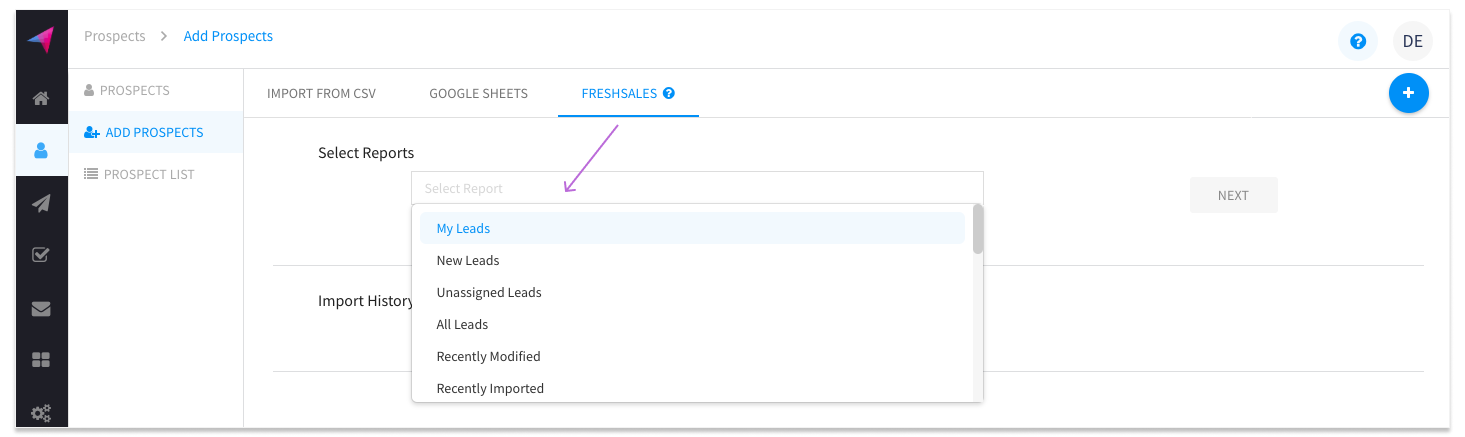
  1. Log in to your Klenty account and go to Prospects -> Add Prospects.
  2. Go to the Freshsales tab and select the Freshsales Filter to be imported from the drop-down.

3. You can add the prospects to an existing Tag/List or create a new Tag/List and click on Import.

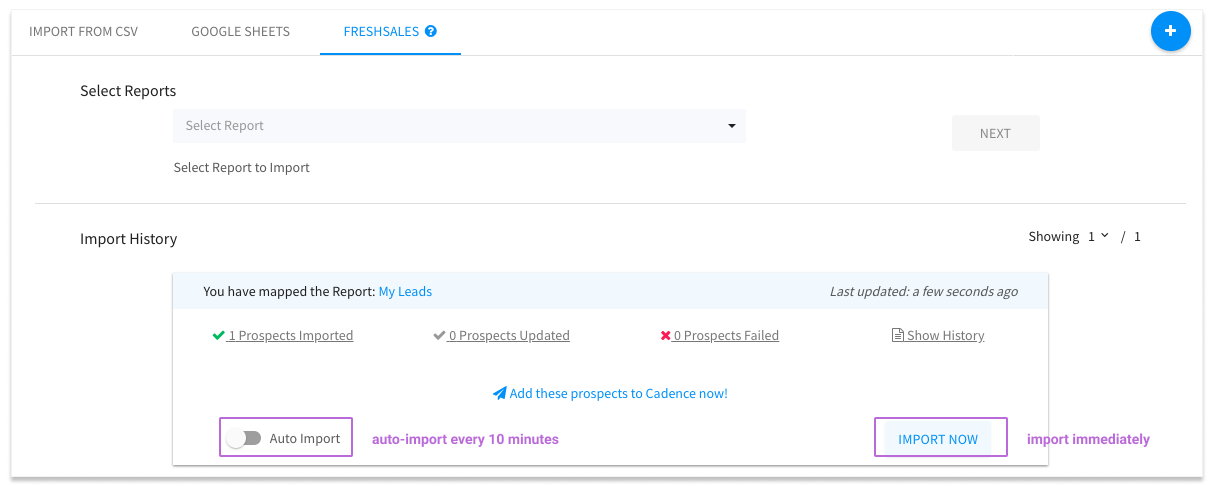
The filter will then be displayed under Import History.

Toggle on Auto import to automatically add prospects to Klenty when the selected filter is updated in Freshsales. (Note: we check your Freshsales filter for updates every 30 minutes.)

To import leads from this filter immediately, click on Import Now.

Importing from Salesforce to Klenty

Before you begin:

  • make sure your Salesforce account is connected to Klenty.
  • create at least one Leads or Contacts report in Salesforce that includes the prospects you want to import to Klenty.

To import from Salesforce:

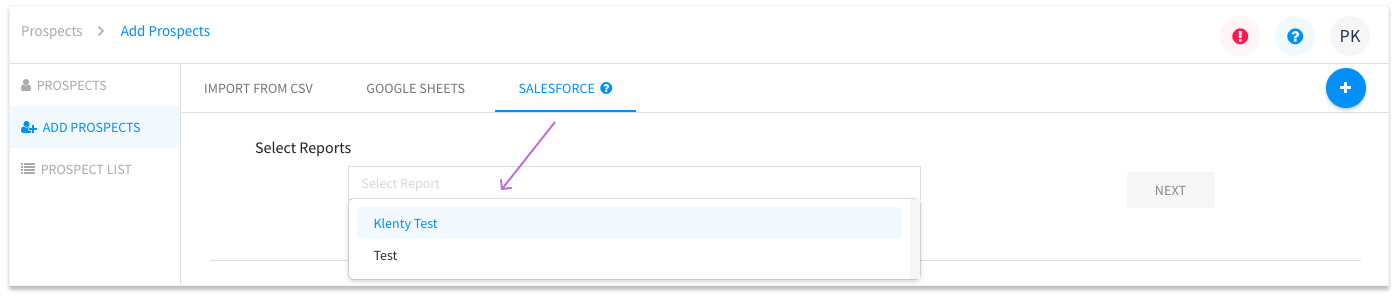
  1. In your Klenty account and go to Prospects -> Add prospects -> Salesforce.
  2. Select the Report you want to import from the drop-down box.

3. You can add the prospects to a List or Tag and click on Import.

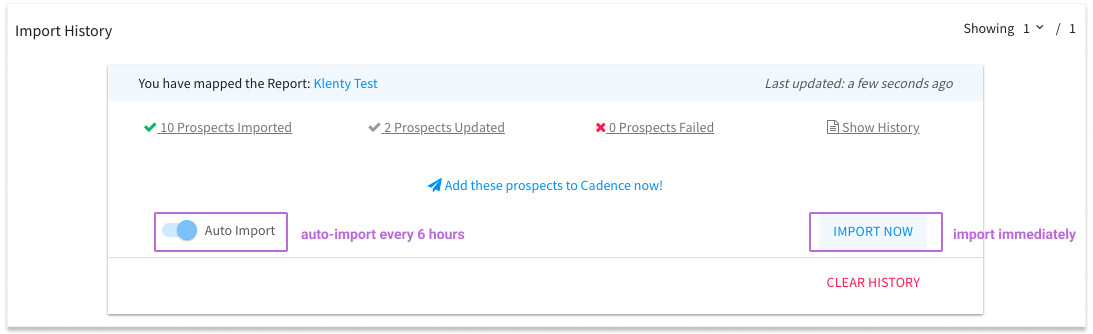
Import options:


Toggle on Auto import to automatically add prospects to Klenty when the Imported filter is updated. (Note: we check for updates from your Salesforce report every 6 hours.)

Import prospects to Klenty using CSV, Google Sheets, CRM, or manually.

Before you begin

Make sure your CSV has the prospect details separated in columns for each field. Each column should have a header.

  1. In your Klenty account and go to Prospects -> Add Prospects
  2. In the Import from CSV tab click on the box to upload, or drag and drop the file you want to import.

3. Klenty will automatically map the column headers with prospect fields. Make sure you verify that your CSV headers are mapped to the correct prospect fields in Klenty. These can be used as placeholders in your email templates to personalize each email.
Note: If you can’t find a prospect field to map your CSV columns to, you can create a outreach email

4. You can assign Tags or add to a List here to categories the prospects in your Klenty database. You can create or choose from your existing tags/lists or use a column from your CSV file.

5. Enable Update Duplicates if you need to update prospects already added to your Klenty account.

Import using Google Sheets

To begin, connect your Google account.

  1. Login to Klenty and go to Prospects, Add Prospects and the Google Sheets tab.
  2. Enter the email id of the Google Drive account that you wish to connect to Klenty and click on Authenticate.

Once this is done, you can create Sheets via Klenty and add your prospects’ information. The Sheets will be created in a new Klenty folder in your Google Drive.

  1. Enter a name to create a new Sheet.
  2. Copy your prospect details over to this new Sheet.
  3. In Klenty, you’ll see the Sheets you’ve created via this process in the Google Sheets tab listed as ‘Your sheets‘. Click on the Import button on the Sheet you want to import.
  4. Your Sheet headers will be automatically mapped with Klenty prospect fields. You can verify and edit as required, and create a new custom field if there are no prospect fields that match your requirement.
  5. Add to a list or tags if needed and click on Preview to confirm your mapping.
  6. Click on Start Import to start adding the prospects to Klenty. 

Once a Sheet has been imported, you can

  1. enable the auto-import option to automatically import new additions to the Google Sheet (remember to add the new prospects to the last row of the Sheet)
  2. click on Import Now to immediately import any new additions in the Sheet.

Manually add prospects

To add Prospects manually

  1. Login to you Klenty account and go to Prospects -> Add prospects.
  2. Click on the + Quick Add buttonand enter your prospect’s details.
  3. Add the prospect to a new or select an existing Tag/List and click on Create.
Design a site like this with WordPress.com
Get started